NODE Music User Guide
Everything you need to know - from your first listen to managing a full label roster.
1. What is NODE Music?
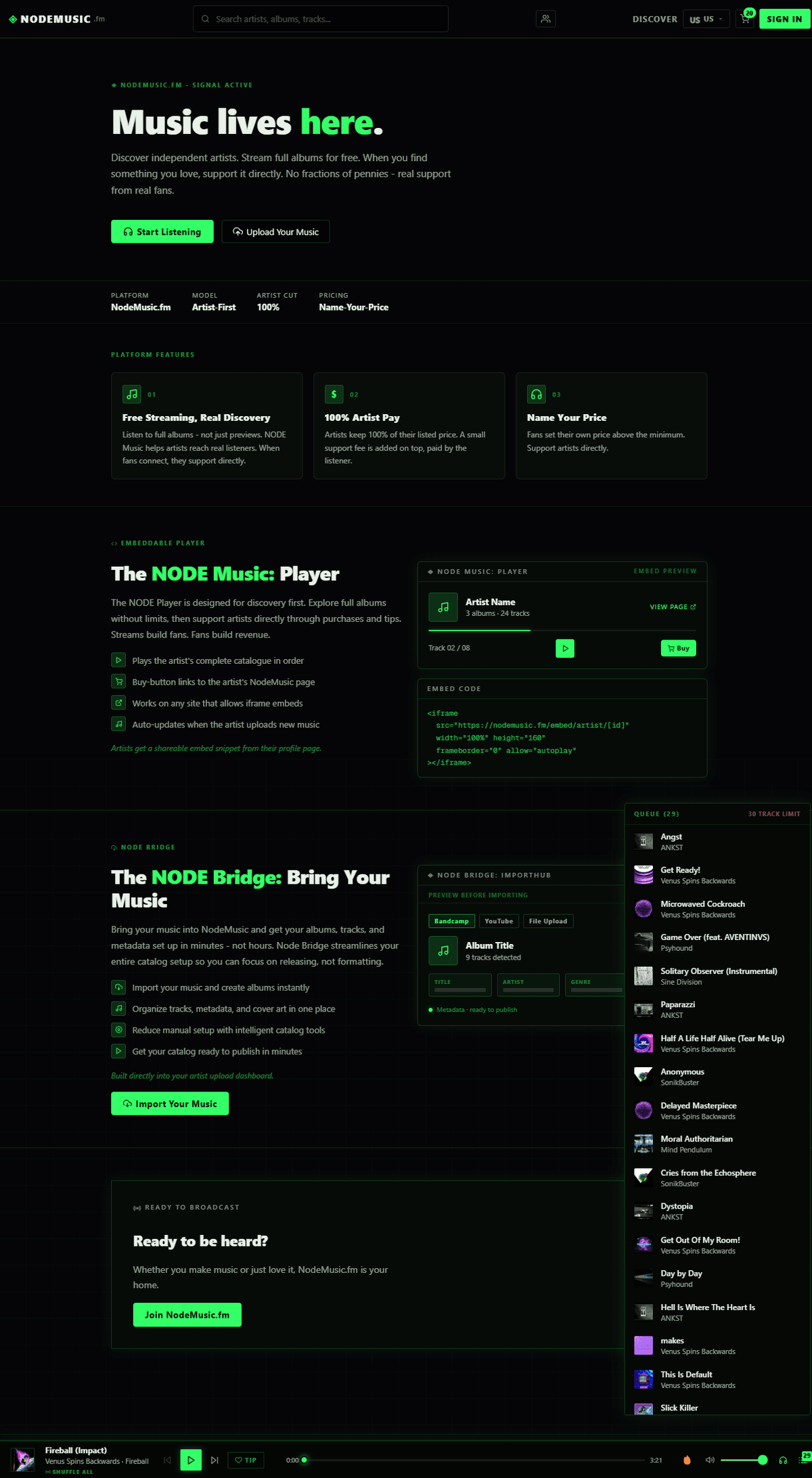
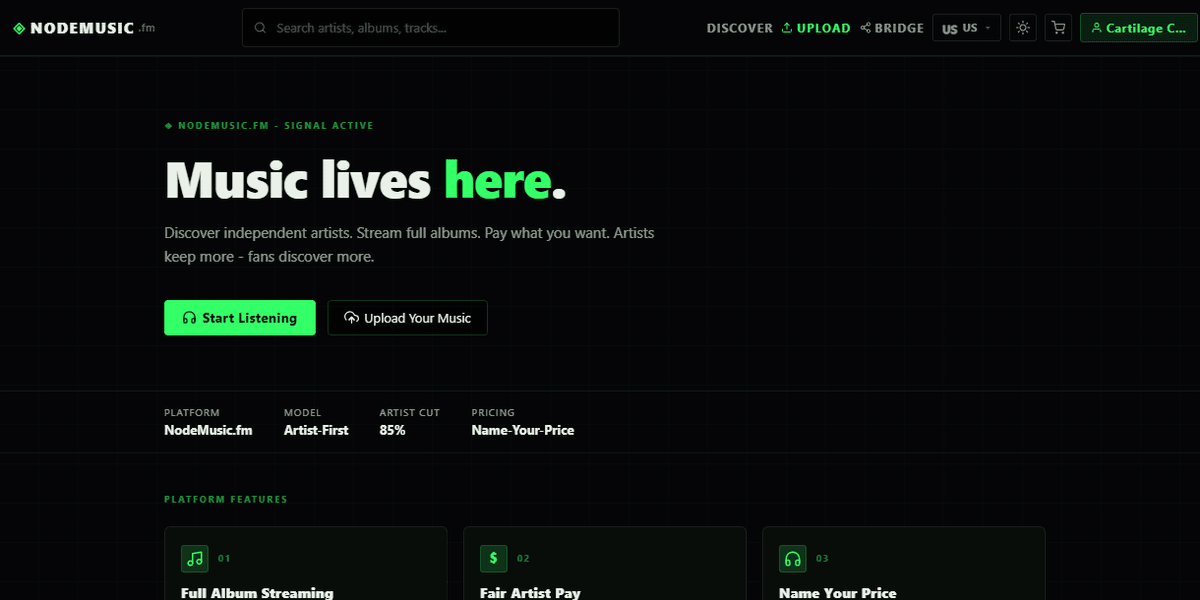
NODE Music is an independent music platform where artists keep 100% of their listed price. A 15% platform support fee is added on top, paid by listeners. Think of it like Bandcamp, but with built-in discovery radio, tipping, signal reactions, embeddable players, a full label management system, and promo tools.
2. Getting Started (All Users)
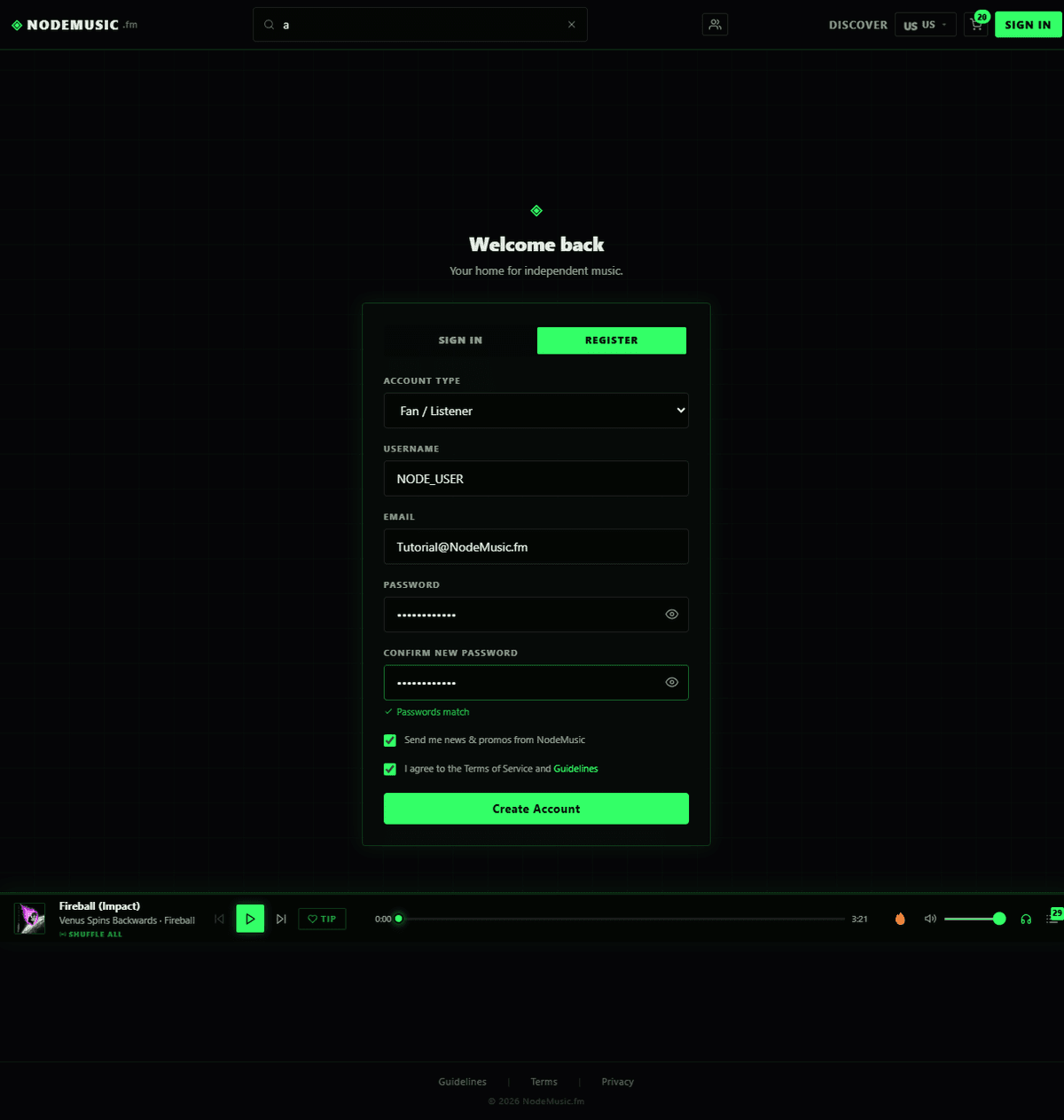
2.1 Creating an Account
Click Sign In → Register → enter your username, email, password → select account type (Listener, Artist, or Label) → complete registration. You'll receive a confirmation email with a 24-hour expiry link.
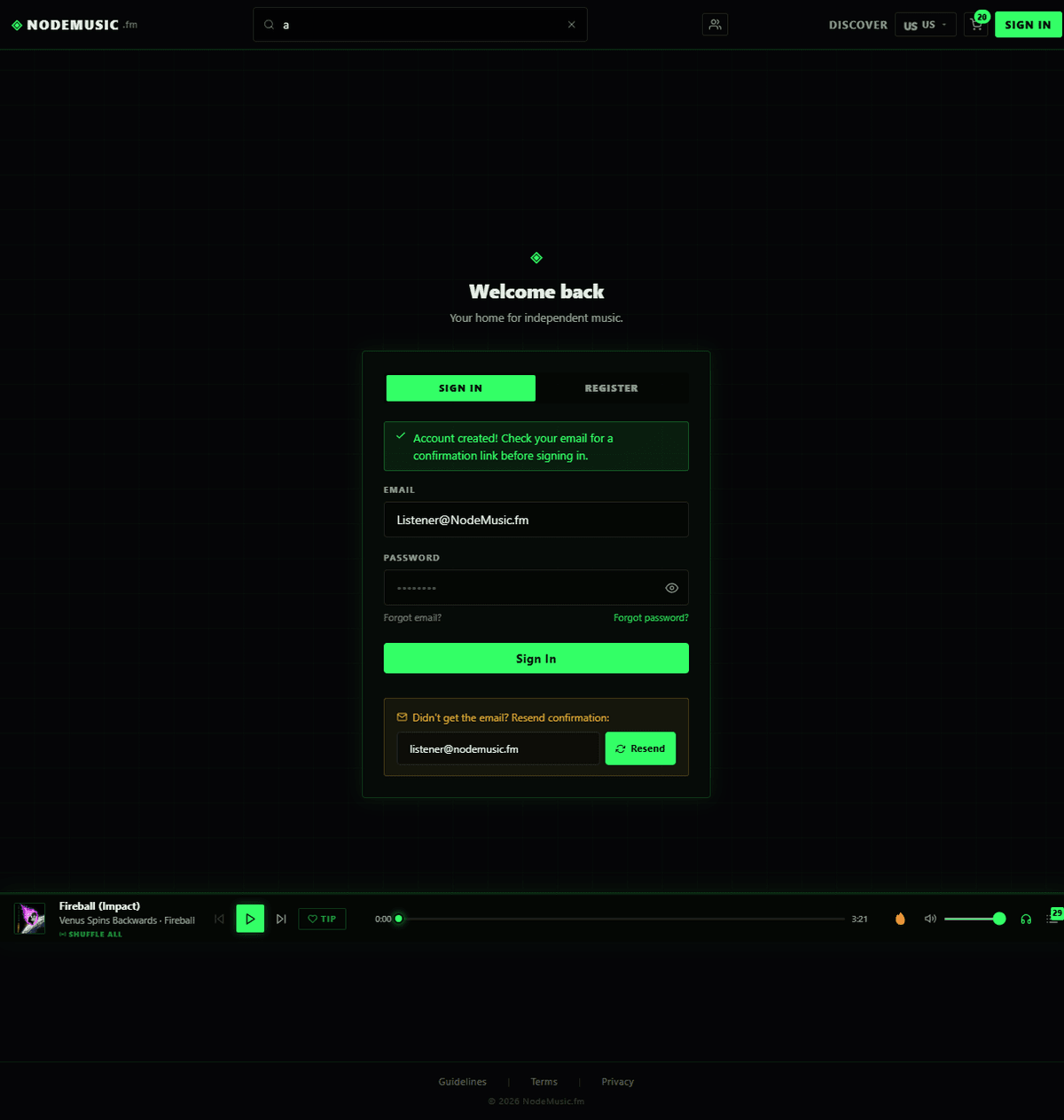
After Registration You'll see a success banner on the sign-in page, and a verification email is sent to your inbox.
Email Confirmation The verification email includes a green CONFIRM button and a fallback URL. The link expires in 24 hours.
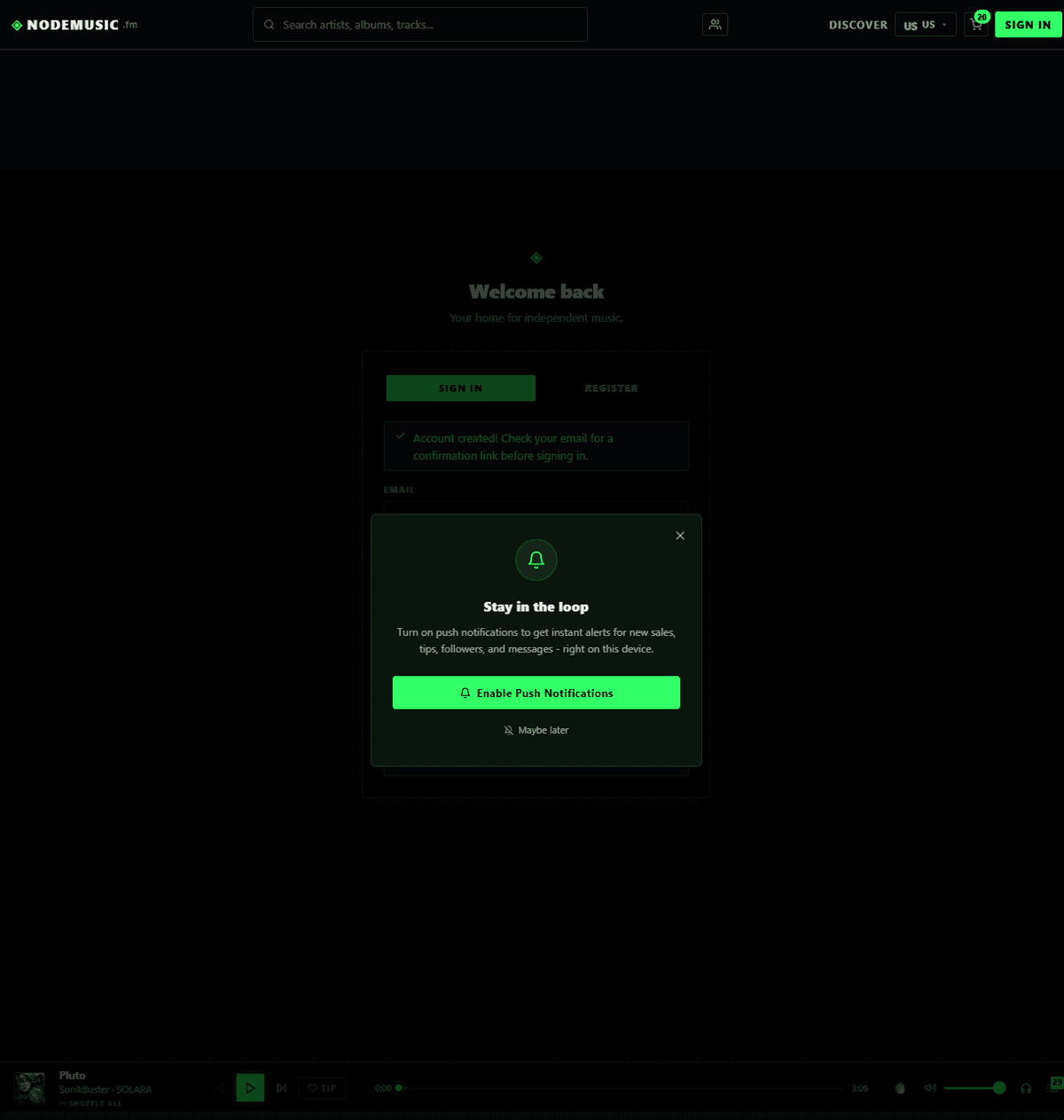
Push Notifications After first sign-in, a "Stay in the loop" modal offers push notifications.
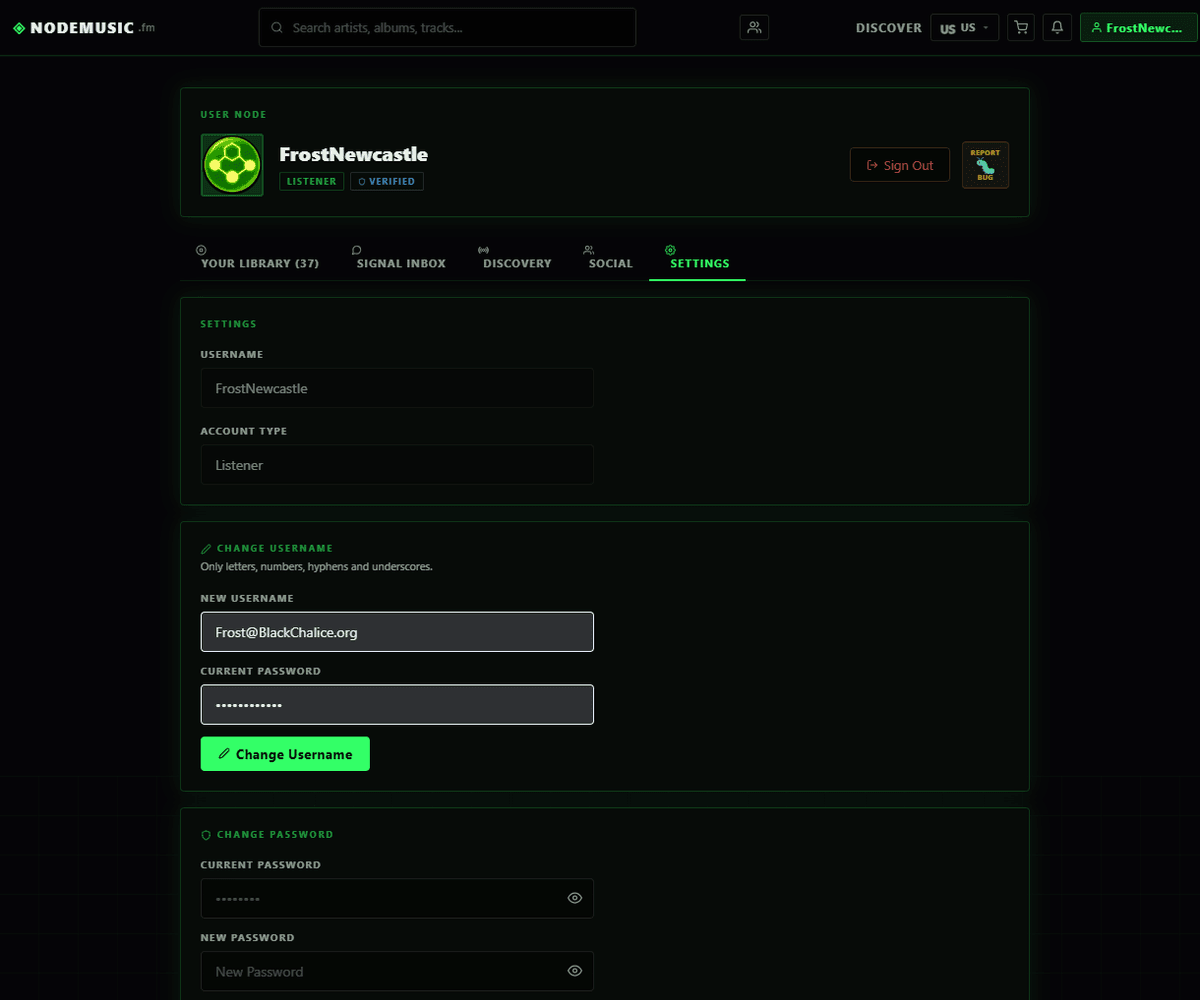
2.2 Your Account Dashboard
Click your avatar in the top-right to go to your Account page. The tabs you see depend on your account type.
Artist Dashboard Artists get the full creator toolkit with releases, payouts, analytics, promo forge, and gifting.
Label Dashboard Labels get everything artists have, plus the exclusive Roster tab.
2.3 Navigation
The top navbar includes: NODE Music logo, Discover, Search, Cart, Notification bell, Avatar/Sign In, Language picker (27 languages), and Theme toggle (dark/light).
3. The Listener's Guide
3.1 Discovering Music
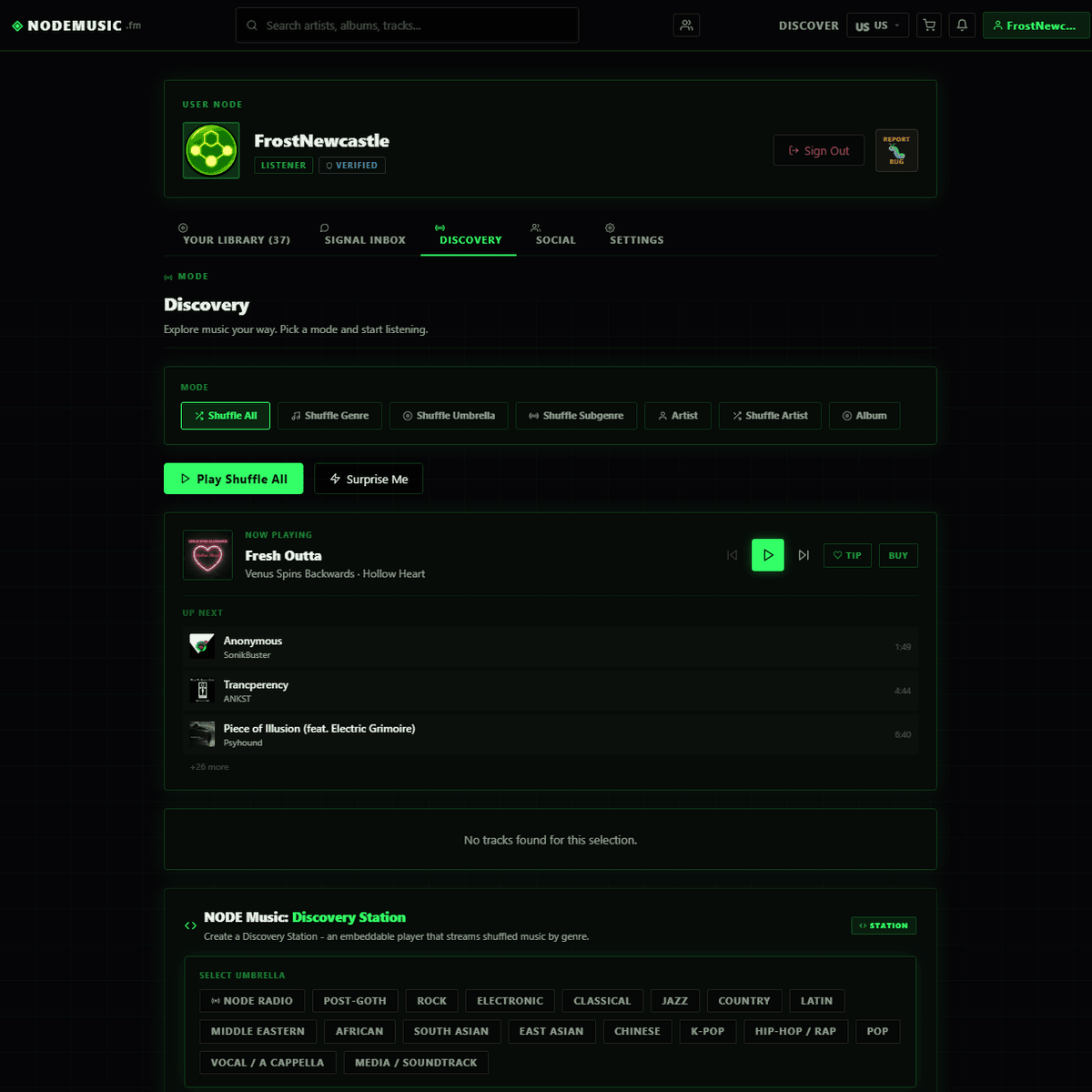
Welcome Radio loads 30 random tracks on first visit. The /discover page shows a browsable album grid with genre filters. The Discovery tab in your account offers 7 playback modes including Shuffle All, Shuffle Genre, Shuffle Artist, and Album mode.
3.2 Artist & Album Pages
Every artist has a public profile with avatar, bio, location, followers, and full discography. Album pages show cover art, track listing, price, purchase button, signal reactions timeline, and lyrics.
3.3 Buying Music
Buy directly from album/track pages or add to your cart for batch checkout via Stripe. Artists set their price, a 15% platform fee is added on top, and the artist receives 100% of their listed price.
3.4 Tipping Artists
After ~60 seconds of listening, a tip prompt appears in the player. Choose a quick amount or enter a custom one. Artists receive 100% of tips (minus payment processor fees).
3.5 Your Collection
The Collection tab shows all purchased albums, individual tracks, gifted items, and download links for original-quality files.
3.6 Following Artists
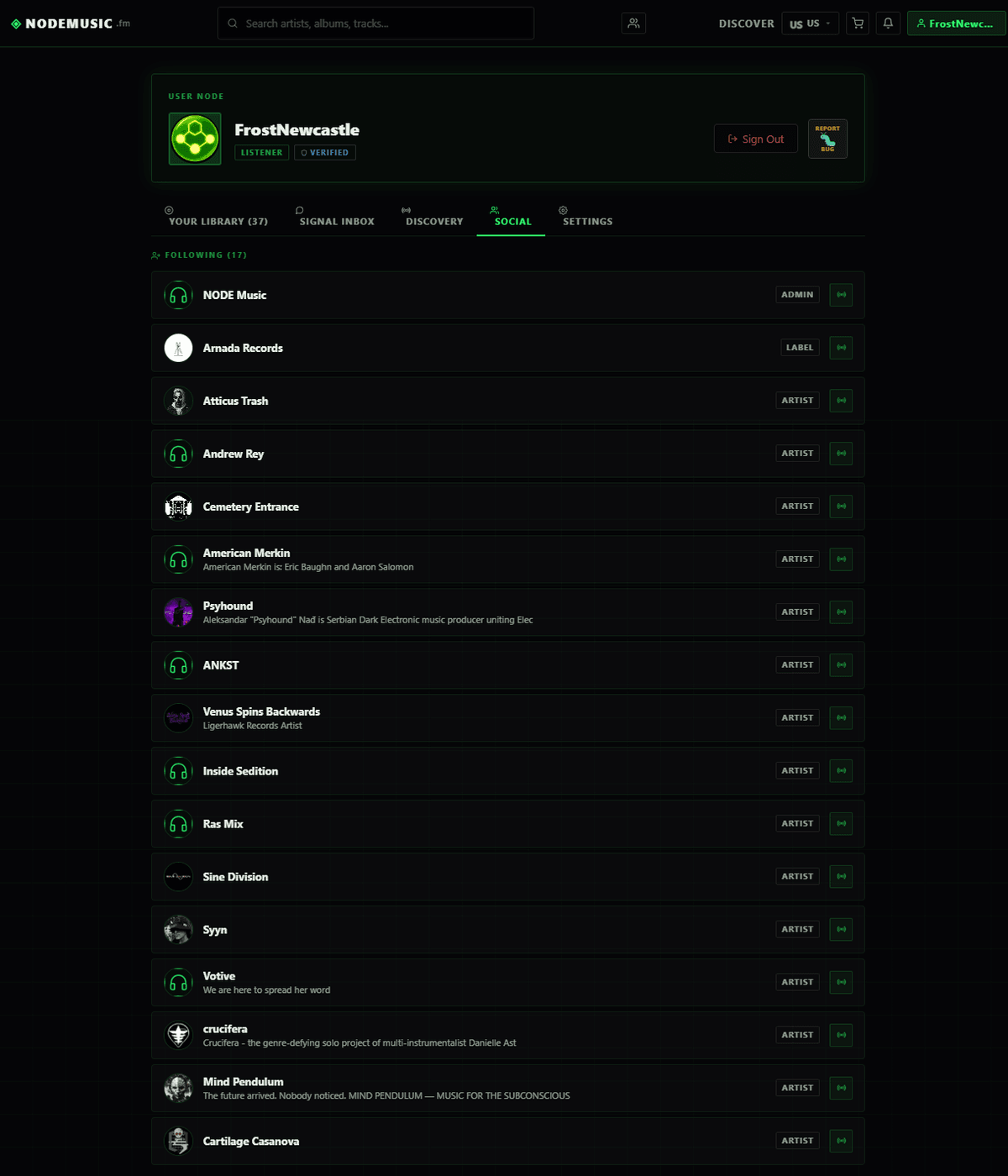
Click Follow on any artist's page. You'll be notified when they release new music and they appear in your Social tab.
3.7 Social Tab
Shows artists you follow, your followers, and follower/following counts.
4. The Artist's Guide
4.1 Artist Profile
Upload a profile photo, set bio/location/website in Settings. Your username becomes your public URL at /artist/[name].
4.2 Uploading Music
Create albums with cover art, pricing, genre classification, tags, and optional Limited Edition settings. Add tracks with audio (MP3, WAV, AIFF, FLAC, OGG, OPUS), lyrics, ISRC codes, and individual pricing.
4.3 Node Bridge
Import your existing catalog from Bandcamp (paste URL), YouTube (playlist URL), or ZIP upload. All metadata, cover art, and audio are imported automatically.
4.4 Managing Releases
The Releases tab is your catalog manager. Expand any album to edit title, tracks, cover art, pricing, classification, tags, limited edition settings, and soft-delete. Gift Music lets you gift albums/tracks to any user.
4.5 Payouts
Connect Stripe, PayPal, Wise, Payoneer, or crypto (USDC on Base). Earnings have a 7-day hold period. Track Tips, Sales Earnings, and Total Earnings.
4.6 Analytics
Play analytics, listener region heatmap, purchase region analytics, and follower activity. Desktop only (with mobile shortcut).
4.7 Signals Inbox
View signal reactions (fire, energy, love, brain, replay), review and approve/reject text comments, see heat zones.
4.8 Promo Forge
Built-in visual editor for 1080×1080px social media promo images. Templates, backgrounds, QR codes, custom text, and live preview.
4.9 Royalty Splits
Set up percentage-based splits with collaborators. Versions: Draft → Active → Locked or Superseded.
4.10 Embeddable Players
Create embed codes for albums, tracks, or discovery stations. Paste into any HTML page.
5. The Label's Guide
5.1 What Labels Can Do
Everything artists have, plus roster management: create artist profiles, upload on behalf of artists, track analytics across your roster, send invites.
5.2 Setting Up Your Label
Your label gets a public page at /label/[name] showing your roster and releases.
5.3 The Roster Tab
Create artist profiles, view managed artists, invite existing artists by username, and track invite status (pending, accepted, declined).
5.4 Managing Releases for Artists
Use the "Managing:" dropdown in the Releases tab to switch between artists and upload/manage on their behalf.
6. The Player
The persistent Player bar sits at the bottom of every page with Play/Pause, Previous, Next, progress bar, volume, mute, queue toggle, and automatic loudness normalization. The queue auto-refills when it runs low (if signed in). After ~60s of listening, a tip prompt appears. On mobile, the player collapses to a compact bar.
7. Signals & Comments
Signals are lightweight emoji reactions (🔥 Fire, ⚡ Energy, ❤️ Love, 🧠 Brain, 🔁 Replay) you can drop at specific moments in a track. When many signals cluster at the same timestamp, a "heat zone" glows on the timeline. Artists can also enable text comments with a moderation queue.
8. Notifications & Push Alerts
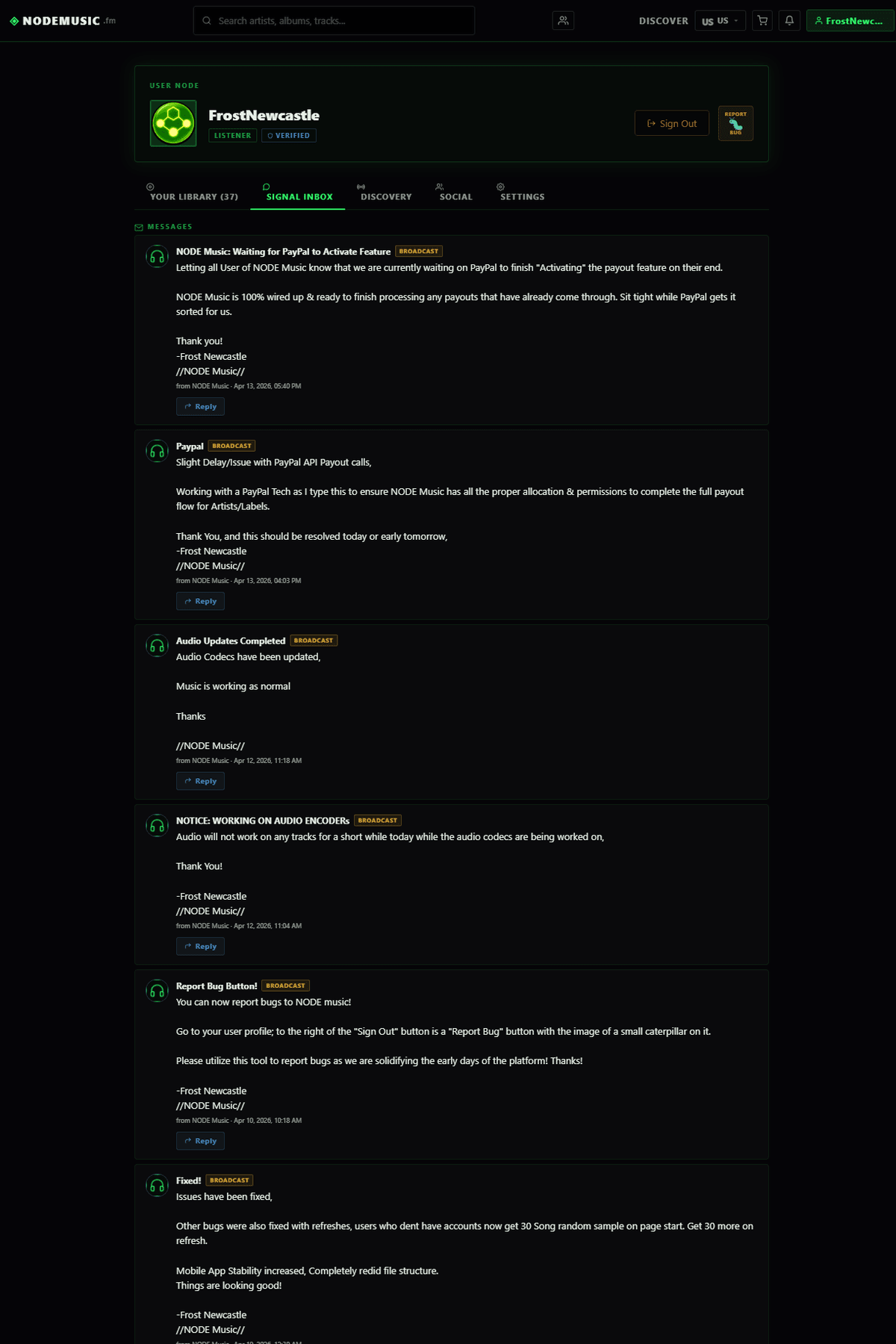
The notification bell shows in-app alerts for purchases, tips, followers, releases, gifts, signals, broadcasts, and label invites. Enable Web Push in Settings for browser notifications even when not on the site.
9. Settings & Preferences
Manage username, email, password, bio, location, website, language (27 supported), theme (dark/light), and push notifications.
10. FAQ
Is NODE Music free? - Yes, streaming is free. Pay only when buying or tipping.
How much do artists get? - 100% of their listed price. 15% fee is added on top, paid by the listener.
Can I import from Bandcamp? - Yes, via Node Bridge.
Audio formats? - MP3, WAV, AIFF, FLAC, OGG, OPUS.
When do artists get paid? - 7-day hold, then auto-released daily.
Can labels manage releases for artists? - Yes, via the Managing dropdown in Releases.
Last updated: April 15, 2026 · NodeMusic.fm